FreeBSD+Gnome解决自动睡眠问题

安装教程参考

https://book.bsdcn.org/di-4-zhang-zhuo-mian-an-zhuang/di-4.3-jie-an-zhuang-gnome

解决

可以使用dconf Editor,它是一个用于编辑系统设置的图形化工具。通过打开dconf Editor,导航到org->gnome->settings-daemon->plugins->power,将sleep-inactive-ac-timeoutsleep-inactive-battery-timeout的值设置为0,即可关闭睡眠功能。
阅读全文 »

在Suma(中科可控)安装OpenEuler和Ukui及驱动

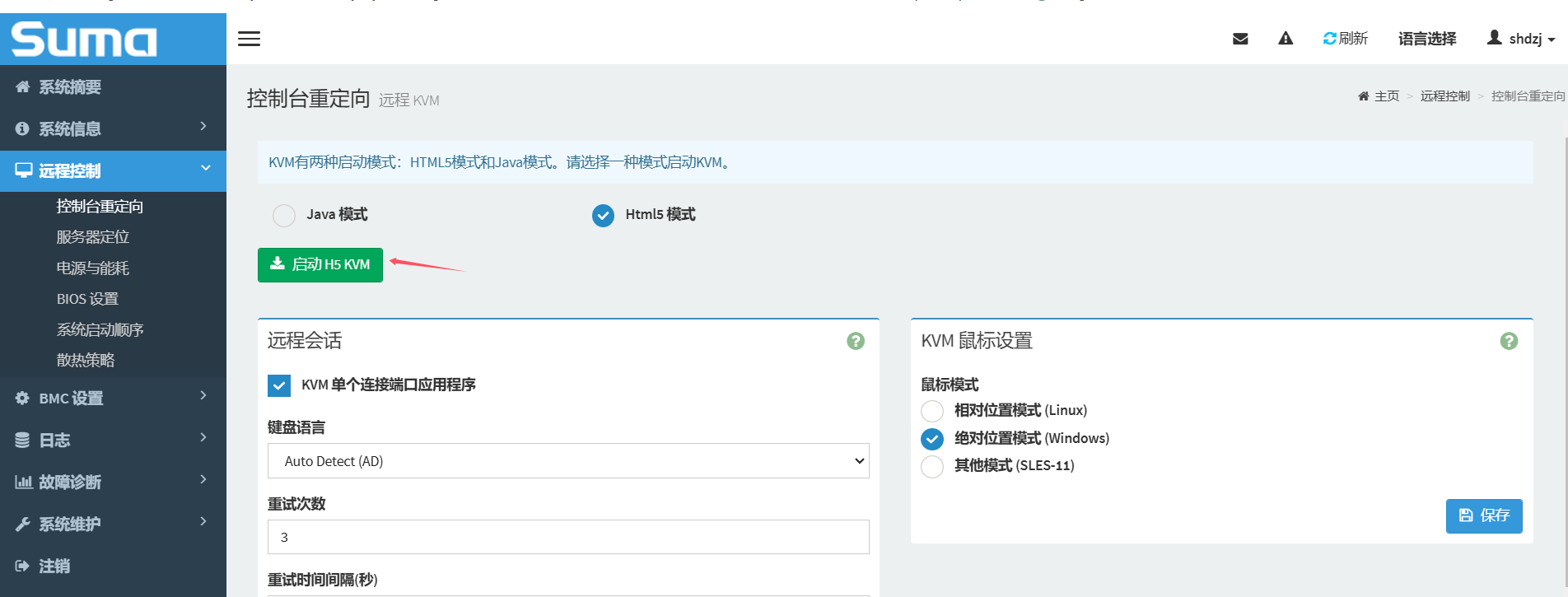
  1. 登入管理后台(ip可以在开机时左上角看到)
  2. 进入KVM界面
image-20241218162135545
  1. 右上角挂在镜像后开机
  2. 文本化安装即可

修改网卡自启动

阅读全文 »

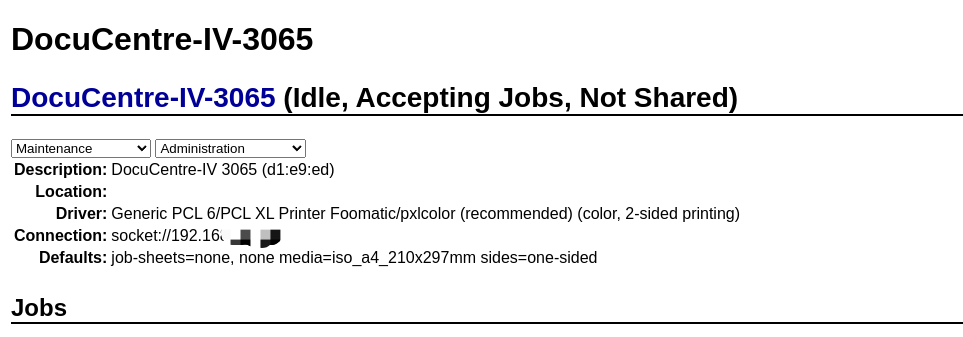
Ubuntu下使用CUPS配置FUJI Xerox 3065驱动

  1. http://localhost:631 登入CUPS管理界面,
  2. 选择机型为Generic,驱动为Generic PCL 6/PCL Printer Foomatic/pxlcolor即可
e7f98c494fceca092424abb356029c1

LVM分区扩容

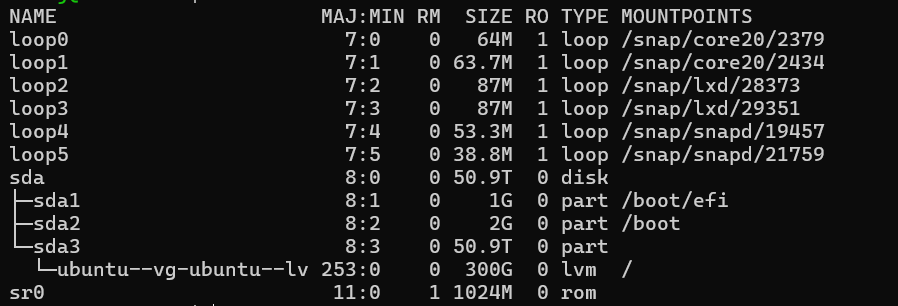
  1. 查看分区、挂载状况sudo lsblk
image-20241121091858907
  1. 查看LVM信息

sudo pvscan

阅读全文 »

部署Ollama

修改Dify上传大小

1
2
3
4
NGINX_CLIENT_MAX_BODY_SIZE=50M

UPLOAD_FILE_SIZE_LIMIT=1024
UPLOAD_FILE_BATCH_LIMIT=50

参考文档

  1. https://deepseek.csdn.net/67c50d2a2e30c8639009ef75.html
  2. https://blog.csdn.net/weixin_45804131/article/details/146250560?spm=1001.2101.3001.6650.3&utm_medium=distribute.pc_relevant.none-task-blog-2%7Edefault%7ECTRLIST%7ECtr-3-146250560-blog-140873521.235%5Ev43%5Epc_blog_bottom_relevance_base4&depth_1-utm_source=distribute.pc_relevant.none-task-blog-2%7Edefault%7ECTRLIST%7ECtr-3-146250560-blog-140873521.235%5Ev43%5Epc_blog_bottom_relevance_base4&utm_relevant_index=5
  3. https://github.com/langgenius/dify/issues/7829
  4. https://blog.csdn.net/SPM101/article/details/145675216
  5. https://zhuanlan.zhihu.com/p/26611604776
  6. 全网最详细的手把手deepseek本地部署到知识库的搭建(傻瓜式操作案例,包含过程中出现的问题解决方案)
  7. 全网最详细的手把手deepseek本地部署到知识库的搭建(傻瓜式操作案例,包含过程中出现的问题解决方案)
  8. Ollama服务配置-支持外网访问
阅读全文 »

Oracle上Ubuntu镜像安装Bt面板无法访问问题解决

1
2
3
4
sudo iptables -P INPUT ACCEPT
sudo iptables -P FORWARD ACCEPT
sudo iptables -P OUTPUT ACCEPT
sudo iptables -F

原因为镜像原始路由规则和宝塔面板冲突,清空所有路由规则

参考

https://www.bt.cn/bbs/thread-73159-1-1.html

阅读全文 »

Ubuntu下安装YouCompleteMe

安装Vundle

1
2
3
# 没有bundle文件夹的话创建即可
git clone https://github.com/VundleVim/Vundle.vim.git ~/.vim/bundle/Vundle.vim
vi ~/.vimrc
1
2
3
4
5
6
7
8
9
10
11
12
13
14
15
16
17
18
19
20
21
22
23
24
25
26
27
28
29
30
31
32
33
34
35
36
37
38
39
40
41
42
43
set nocompatible              " be iMproved, required
filetype off " required

" set the runtime path to include Vundle and initialize
set rtp+=~/.vim/bundle/Vundle.vim
call vundle#begin()
" alternatively, pass a path where Vundle should install plugins
"call vundle#begin('~/some/path/here')

" let Vundle manage Vundle, required
Plugin 'VundleVim/Vundle.vim'

" The following are examples of different formats supported.
" Keep Plugin commands between vundle#begin/end.
" plugin on GitHub repo
Plugin 'tpope/vim-fugitive'
" plugin from http://vim-scripts.org/vim/scripts.html
" Plugin 'L9'
" Git plugin not hosted on GitHub
Plugin 'git://git.wincent.com/command-t.git'
" git repos on your local machine (i.e. when working on your own plugin)
Plugin 'file:///home/gmarik/path/to/plugin'
" The sparkup vim script is in a subdirectory of this repo called vim.
" Pass the path to set the runtimepath properly.
Plugin 'rstacruz/sparkup', {'rtp': 'vim/'}
" Install L9 and avoid a Naming conflict if you've already installed a
" different version somewhere else.
" Plugin 'ascenator/L9', {'name': 'newL9'}

" All of your Plugins must be added before the following line
call vundle#end() " required
filetype plugin indent on " required
" To ignore plugin indent changes, instead use:
"filetype plugin on
"
" Brief help
" :PluginList - lists configured plugins
" :PluginInstall - installs plugins; append `!` to update or just :PluginUpdate
" :PluginSearch foo - searches for foo; append `!` to refresh local cache
" :PluginClean - confirms removal of unused plugins; append `!` to auto-approve removal
"
" see :h vundle for more details or wiki for FAQ
" Put your non-Plugin stuff after this line
  • Launchvimand run:PluginInstall
阅读全文 »

Python利用SSH隧道访问容器资源

1
2
3
4
5
6
7
8
9
10
11
12
13
from sshtunnel import SSHTunnelForwarder

def get_ssh_tunnel():
server = SSHTunnelForwarder(
ssh_address_or_host=('192.168.1.2', 22),
ssh_username='username',
ssh_password='ssh-password',
remote_bind_address=('10.16.3.3', 3306),
local_bind_address=('0.0.0.0', 3306)
)
server.start()

return server

参数含义:

ssh_address_or_host : 跳板机的 IP 和 Port ssh_username : 登录跳板机时使用的账户名称 ssh_password : 登录跳板机时使用的密码 remote_bind_address : 本地机器要访问的目标机器的IP(如果目标机器就是跳板机自己,则是 127.0.0.1)和 Port local_bind_address : SSH 隧道监听的本地机器的 IP(可以是 0.0.0.0 监听所有IP,也可以选择指定的网口) 和 Port

修改ssh设置允许端口转发

阅读全文 »

IPTV相关文档

自建IPTV +plex收看录制直播电视

  1. https://pixman.io/topics/17
  2. https://blog.csdn.net/u010567698/article/details/129341065
  3. https://blog.csdn.net/u010567698/article/details/129374077
  4. 使用Kodi播放
  5. 参考阅读,部分

https://livednow.com/migu/list?id=1400152068&token=nlps54A1CD5F5FA8BC42A833

Ubuntu使用Bolt连接MX Keys和MX Master

1
2
3
4
sudo pip3 install solaar --break-system-packages
git clone https://github.com/pwr-Solaar/Solaar.git /tmp/solaar
sudo cp /tmp/solaar/rules.d/42-logitech-unify-permissions.rules /etc/udev/rules.d/
sudo udevadm control --reload-rules

说明

  • 安装后重新插拔Bolt接收器
  • 可以不完全下载,只下载42-logitech-unify-permissions.rules文件即可

参考

阅读全文 »
0%